Once you have your setups created, the next step is to define what each setup sees. The Camera, Resolution, and Time Output modules control the shot framing and timing for each setup.

Camera

To add cameras to your selected setup, just open up the dropdown where you will see all the cameras from your scene. The selected one will become the viewport’s active camera. You can also select or lock/unlock your cameras.
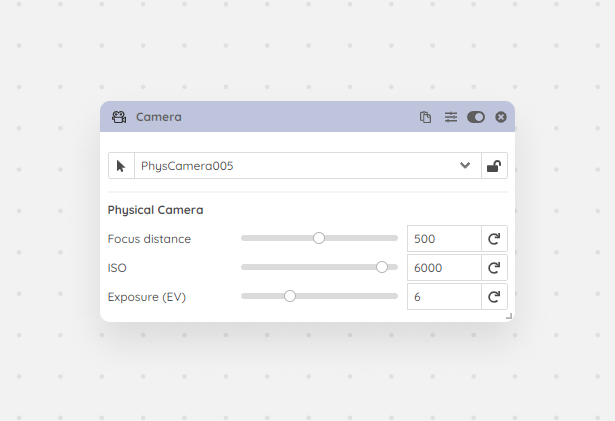
Camera module with a dropdown listing all scene cameras

Camera module with a dropdown listing all scene cameras

When you delete or rename a camera or any other object that is used in one of the setups, Scene Manager will track these changes and will make the modification on all setups where needed. If Scene Manager is not running but you have some states stored in your file, it will recognize the changes and update itself at the next startup.

Resolution

It’s possible to assign different resolutions and aspect ratios to your setups. With the handy aspect ratio slider you can frame your images in an easy and intuitive way. There are also some handy quick buttons which will double or half your width and height values.
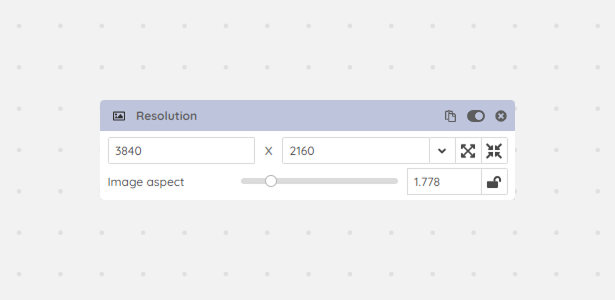
Resolution module with width, height, and aspect ratio controls

Resolution module with width, height, and aspect ratio controls

The resolution you set here is what gets used when you Bake Setups or submit to RenderFlow for batch rendering.

Time Output

The Time Output module is responsible for the current slider time and timeline range as well as the Render Settings > Time Output properties. You can define a Single, Range and a List of frames which are both helpful in case of stills and animations.
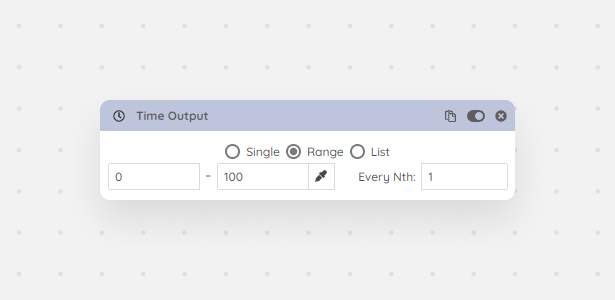
Time Output module with single, range, and list frame options

Time Output module with single, range, and list frame options

If your active camera is animated you can fetch the first and last key which will define the start and the end value of the range as well as the timeline.

Next steps

With your cameras and framing defined, set up your Lighting & Environment or go straight to configuring the Render Settings with output paths and quality settings.