

Sun
If you select a Sun from the dropdown it will be turned on automatically and the rest of the main light sources in the scene will be turned off. In most cases you will also want to have a sky in the environment linked to the sun. To do this you only need to press the cloud button and it will create a sky material according to the type of the sun (VRay or Corona), link them together if needed and add it to the environment slot.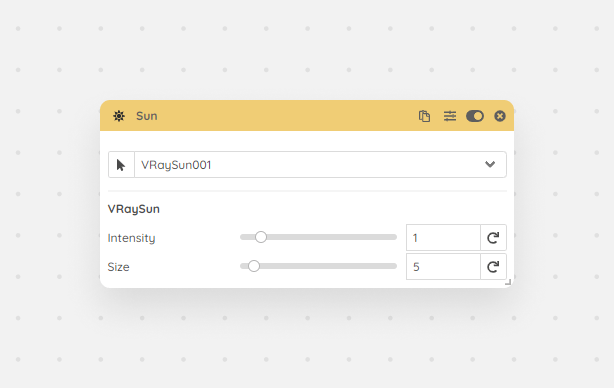
Sun module with sun selection and linked sky material controls
Dome
There are a couple of ways that you can think about using Domes and HDRIs with the Scene Manager. You can create a Dome for each setup, or you can reuse one Dome across multiple setups. It is up to you which workflow suits you more. By opening the dropdown you can select a Dome light from your scene. You can select it, show the chosen HDRI in your preferred Material Editor, or you have the option to fetch the HDRI if the dome already has one.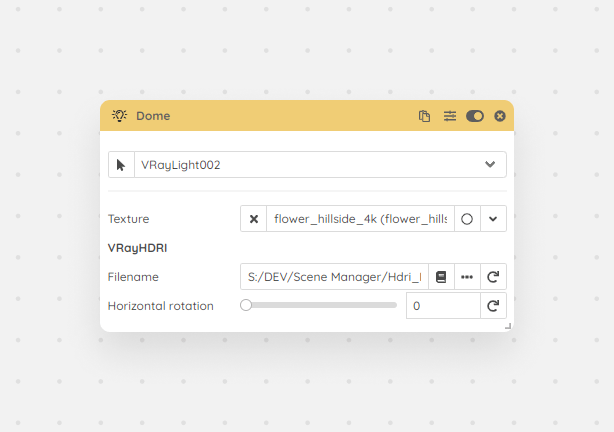
Dome module with dome light selection and HDRI assignment
HDRI Browser
The HDRI Browser will let you access your favorite folders and quickly test out various lighting conditions.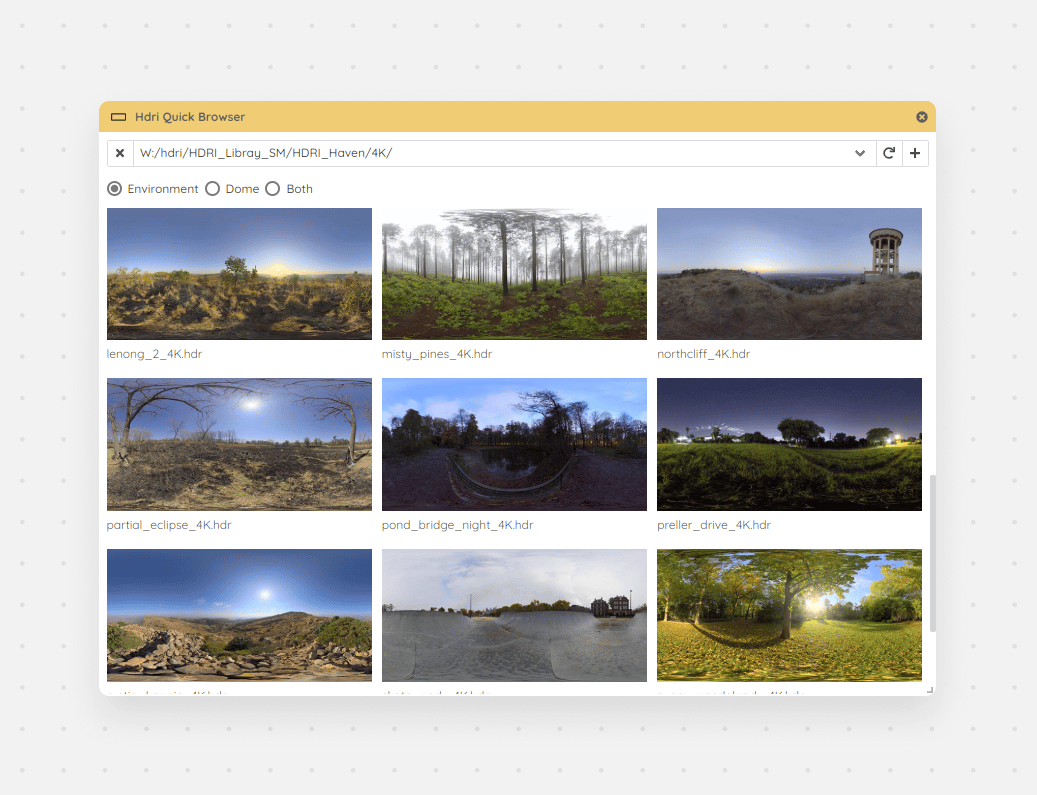
HDRI Browser with folder navigation and thumbnail previews
Environment
The Environment card will control 3ds Max Environment Settings. By default it is set to None. If you have a valid Sun object you can choose to have a Sky map, if you have an HDRI loaded you can load it into the environment from here, or if you need more specific control you can choose Custom.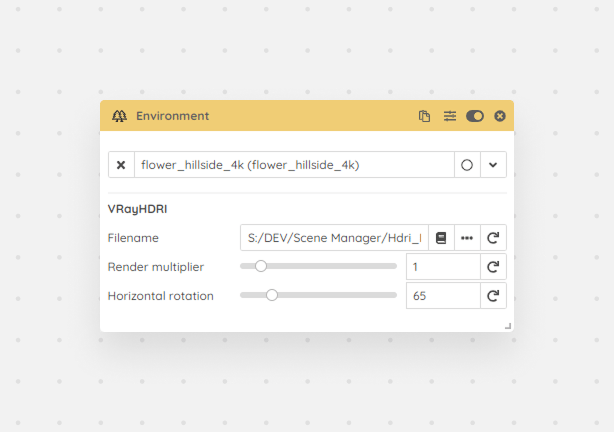
Environment module with None, Sky, HDRI, and Custom options
Atmosphere
With the Atmosphere module you can take control over 3ds Max Atmosphere Effects, likeVRayAerialPerspective or VRayEnvironmentFog. After choosing the required ones from the dropdown you can take control over them and enable/disable these effects per setup.
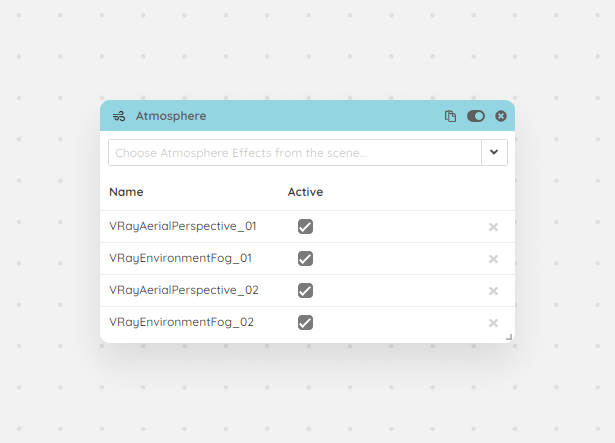
Atmosphere module toggling VRayAerialPerspective and VRayEnvironmentFog per setup
Background
This module controls your active viewport’s background. You can choose between Gradient, Solid, Environment and Custom. The custom option will let you browse a background image, which can be handy in case you want to do photo matching for multiple cameras.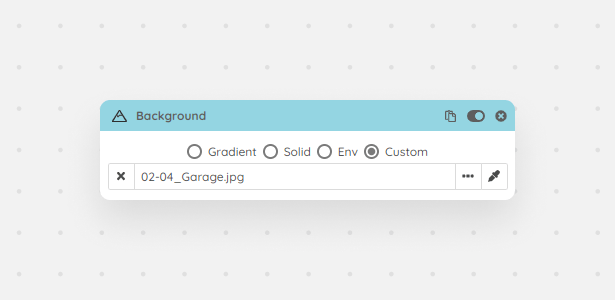
Background module with Gradient, Solid, Environment, and Custom options
Viewport background behavior is also affected by the viewport switch mode in Settings.