

#Glass or #Wood. These groups work like the multimatte masks: put your adjustments inside them, and they’re kept up to date when you update the renders.
Supported renderers
These elements are in the default render element lists with the Crypto flag. A Cryptomatte element never becomes a layer in your document; it only feeds the masks.
Corona writes a correct Cryptomatte only to
.cxr files, which are EXRs inside. Rename the file to .exr before picking it in LayerWise.Pick mattes
When your renders include a Cryptomatte, both workflows show a Cryptomatte masks section with a list of every matte in the file.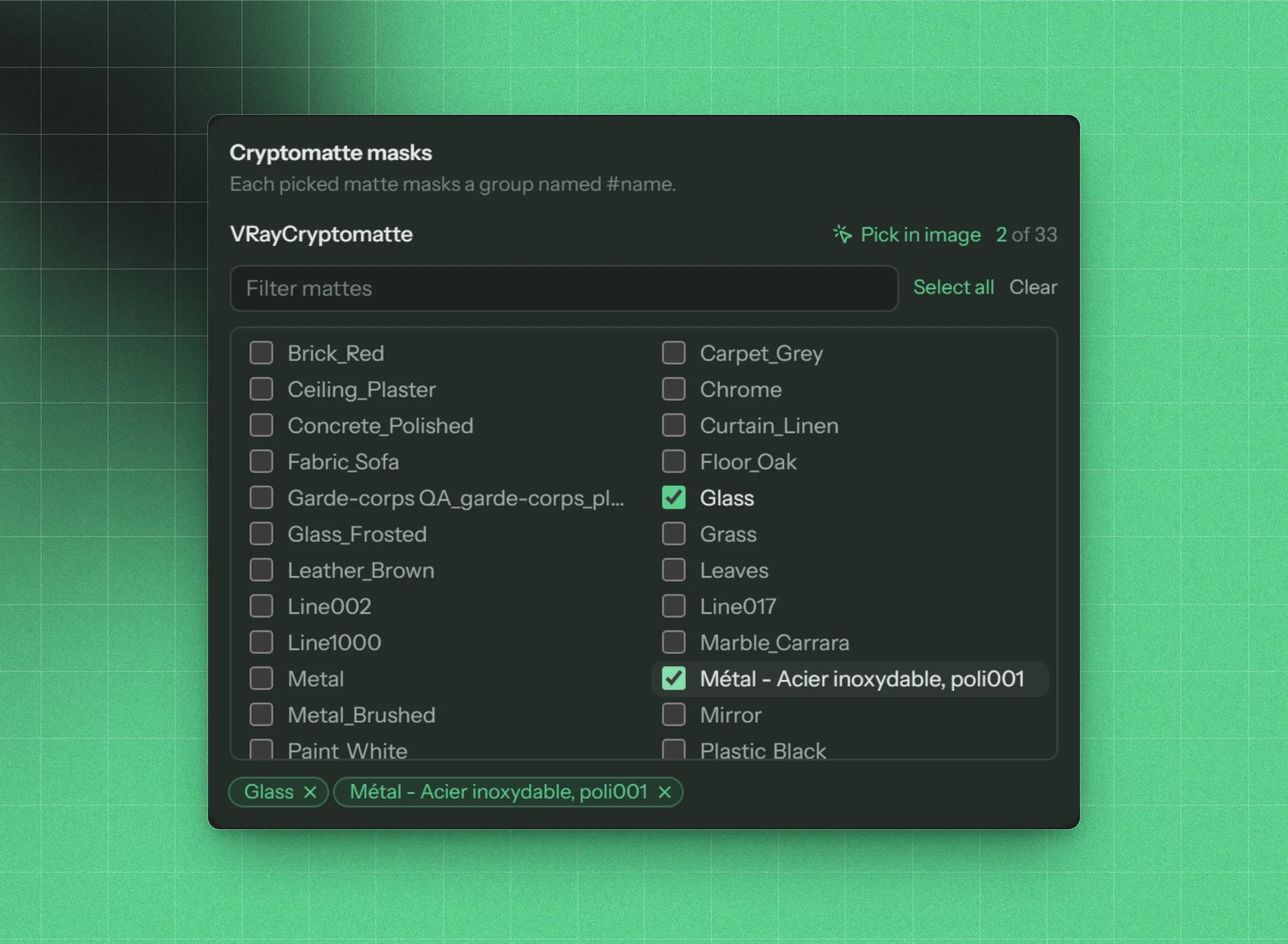
The Cryptomatte picker: filter the list, tick the mattes you want
- Tick the mattes you want. Filter mattes narrows the list, Select all and Clear pick or drop everything shown, and the chips below show what’s picked.
- Pick in image shows the render with the mattes on top. Point at an object to find its matte, and click to pick or unpick it. LayerWise shows the beauty pass when there is one (from the EXR itself, or your RGB_color or Beauty render), and the mattes in false colour otherwise.

Pick in image: point at an object to find its matte, click to pick it
In a new document
In Create new document, nothing is picked by default. Each matte you pick becomes a group named#name with its mask, and the mask is also saved as an alpha channel.
The groups go into the template’s Cryptomatte slot, at the top of that slot’s group. The built-in templates have a hidden Cryptomatte slot right below their multimatte slot. If your template has no Cryptomatte slot, the groups go to the top of the document. You can add one in the template editor by dragging the Cryptomatte element where you want the groups.
When updating renders
In Update renders, mattes whose#name group or layer already exists in the document are picked for you, marked in document, and their masks are regenerated from the new render. Tick more mattes to add them; each one gets a new group next to the existing masks.
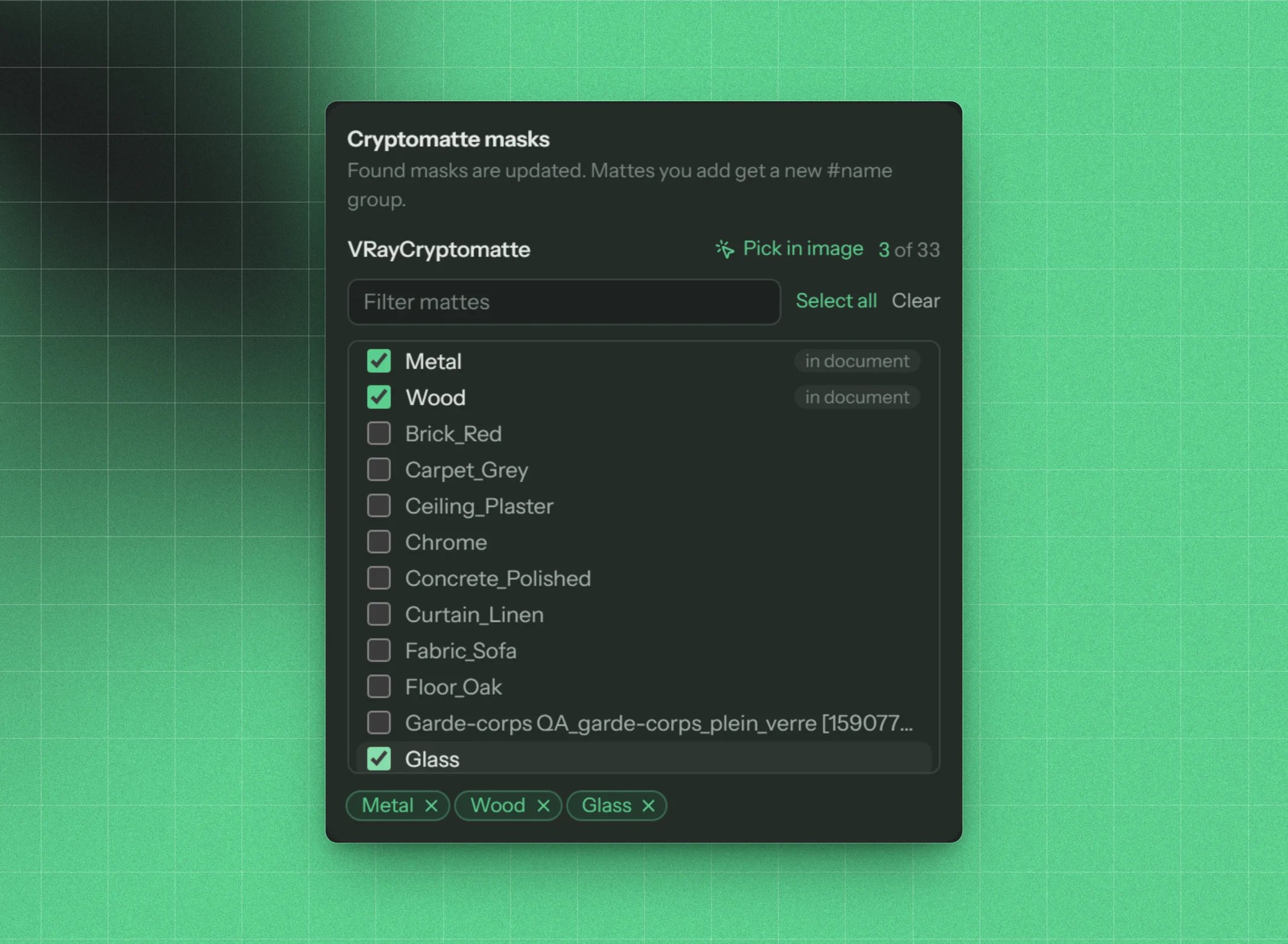
When updating, mattes already in the document are picked and updated
On any document
Tools → Masks from Cryptomatte makes Cryptomatte masks on the open document without updating any renders. Browse the Cryptomatte EXR (and the beauty render too, if the EXR has none), pick mattes, and press Make masks. Existing#name layers and groups get new masks, and the rest get new groups. See Tools.
Files that can’t be read
If LayerWise can’t read a Cryptomatte, the picker tells you why instead of listing mattes:- The manifest is in a sidecar file. The matte names are in a separate file next to the EXR. Set your renderer to embed the manifest in the EXR.
- Cryptomatte stored as half float. The IDs need full 32-bit float. Save the Cryptomatte as full float.
- No manifest or no Cryptomatte channels. The file isn’t a complete Cryptomatte.
- A multichannel EXR that can’t be split (multi-part, tiled, deep, or B44/DWA compression). See Multichannel EXR.