

- Multimatte elements (RGB masks): each of the red, green and blue channels holds one object selection, so one file makes up to three masks. Examples: V-Ray MultiMatteElement, Corona CMasking_Mask, FStorm MultiMatte.
- Luma mask elements: the brightness of the whole image is the mask. Examples: Alpha, ZDepth, ReflectionFilter.
- Cryptomatte elements: one ID per object or material, so you pick the masks you want after rendering. See Cryptomatte.
Nametags
You name a multimatte’s three channels in the file name with nametags: a wildcard character (# by default) followed by a name, in the part of the file name after a dot.
#Wood, #Glass and #Stone.
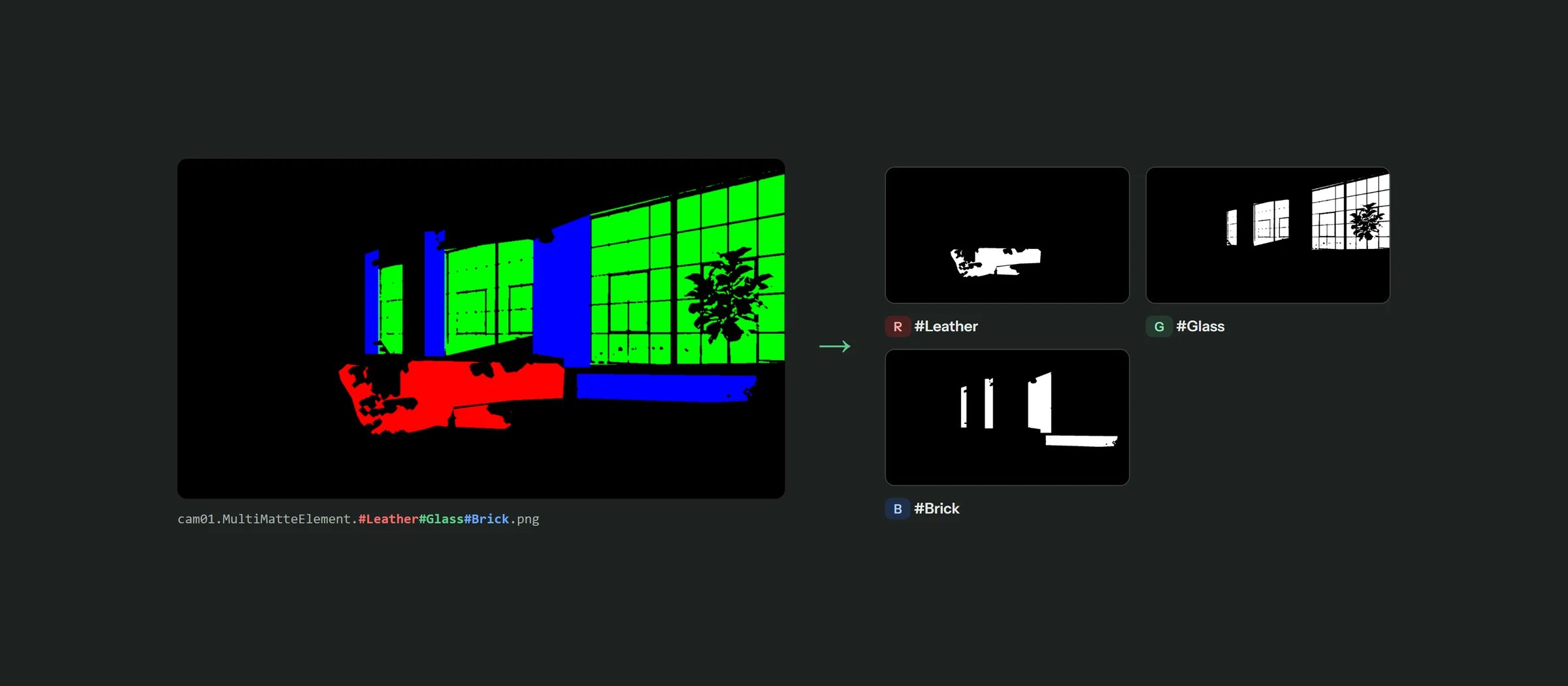
One multimatte, three masks: the nametags name the red, green and blue channels
MultiMatteElement.#Wood#Glass#Stone.
- Missing tags get a default name from the file name and the channel, such as
MultiMatteElement_R. Default names have no wildcard. - Fewer channels: you can turn off the red, green or blue channel in Settings. The other channels keep their tags (turning off green doesn’t move the blue tag to green).
- Another wildcard: if
#clashes with your naming, choose$,&,@or%in Settings.
Luma masks
A luma mask element makes a single mask named[LUMA] followed by the element name, for example [LUMA]Alpha or [LUMA]ZDepth. White in the pass is visible, black is hidden.
Where the masks go
For each mask (#Wood, [LUMA]Alpha and so on), LayerWise:
- Puts it on every layer or group with exactly that name, anywhere in the document. Existing masks on those layers are replaced.
- Creates a new group with that name if none exists, at the top of the group the matte layer is in, with the mask on it.
- Saves it as an alpha channel with the same name in the Channels panel, so you can load it as a selection any time.
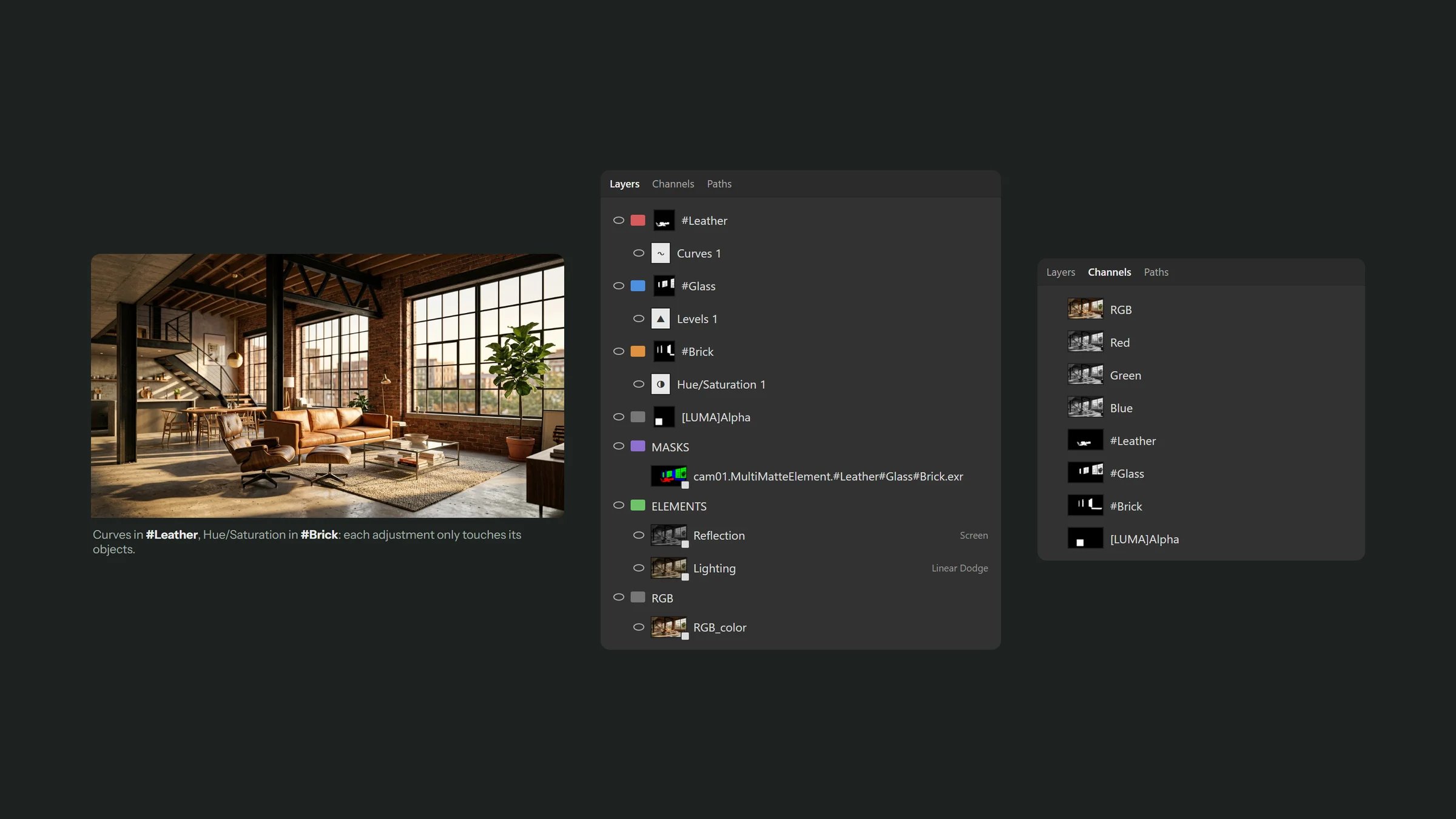
Masked groups hold your adjustments; the same masks are saved as channels
#Plants, and render a multimatte with a #Plants tag. LayerWise finds it and masks it.