

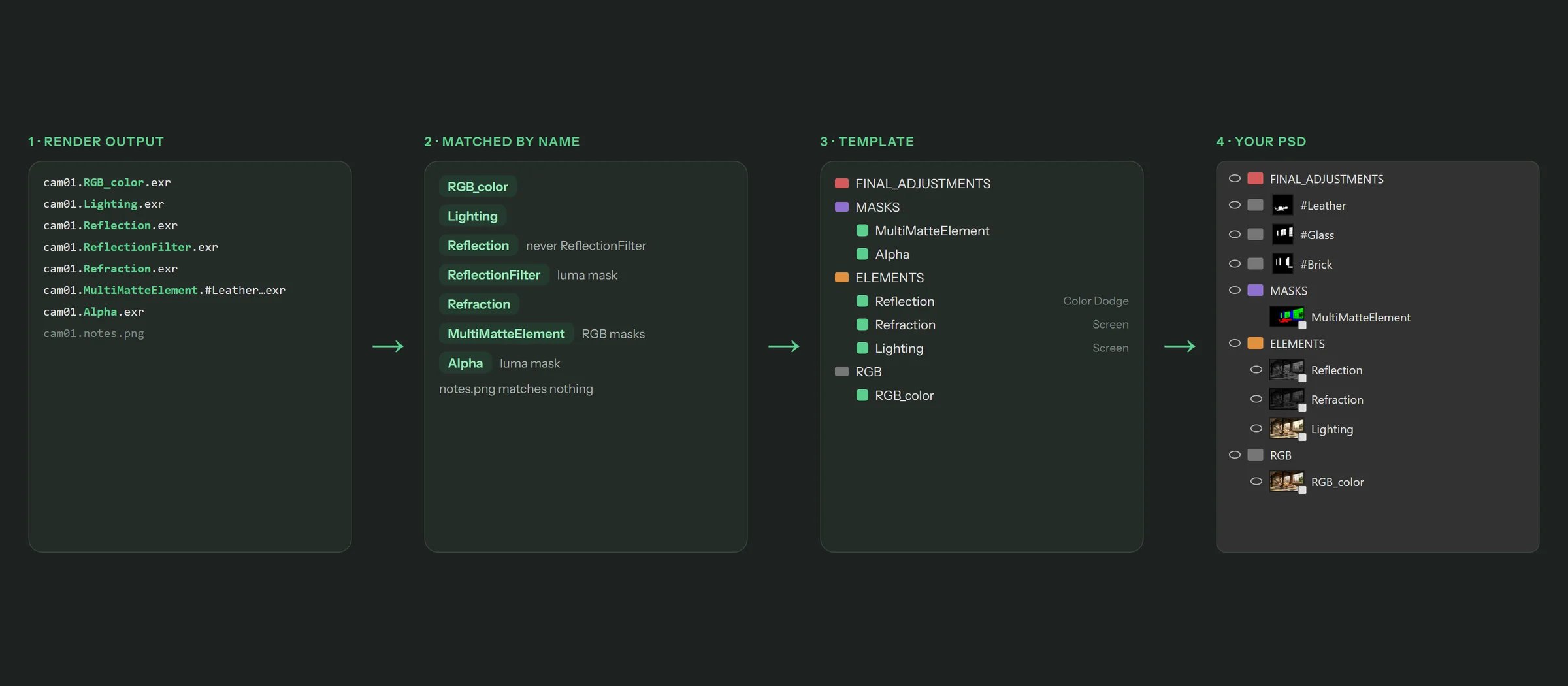
Render files are matched to elements by name, then placed into a template's layer structure
Render engine
LayerWise supports three render engines: V-Ray, Corona and FStorm. Each has its own render element list and its own templates. Pick your engine on the Home screen and everything else follows from it.Render elements and name matching
LayerWise ships with the render element names of each engine (75 for V-Ray, 36 for Corona, 25 for FStorm), and you can add your own. Files and layers are recognized by name. If the name contains an element name, it belongs to that element:
Matching is case-sensitive and avoids the usual false matches between related passes.
Reflection does not match ReflectionFilter, RawReflection, TotalReflection, ReflectionAnalysis or CShading_Reflection, so each of those lands on its own element.
A multichannel EXR works the same way: LayerWise splits it into one file per pass, named after the pass, and matches those. See Multichannel EXR.
Element flags
Each element has four switches, which change how LayerWise treats it:
See Masks for how the masks are made and where they go.
Templates
A template is the layer structure of a post-production PSD: a tree of groups, each with a name, label colour, blend mode, opacity and visibility, plus element slots inside the groups where the render files go. It also sets the document’s bit depth (8, 16 or 32 bits). You get eight built-in templates, and you can create your own from any PSD or in the template editor.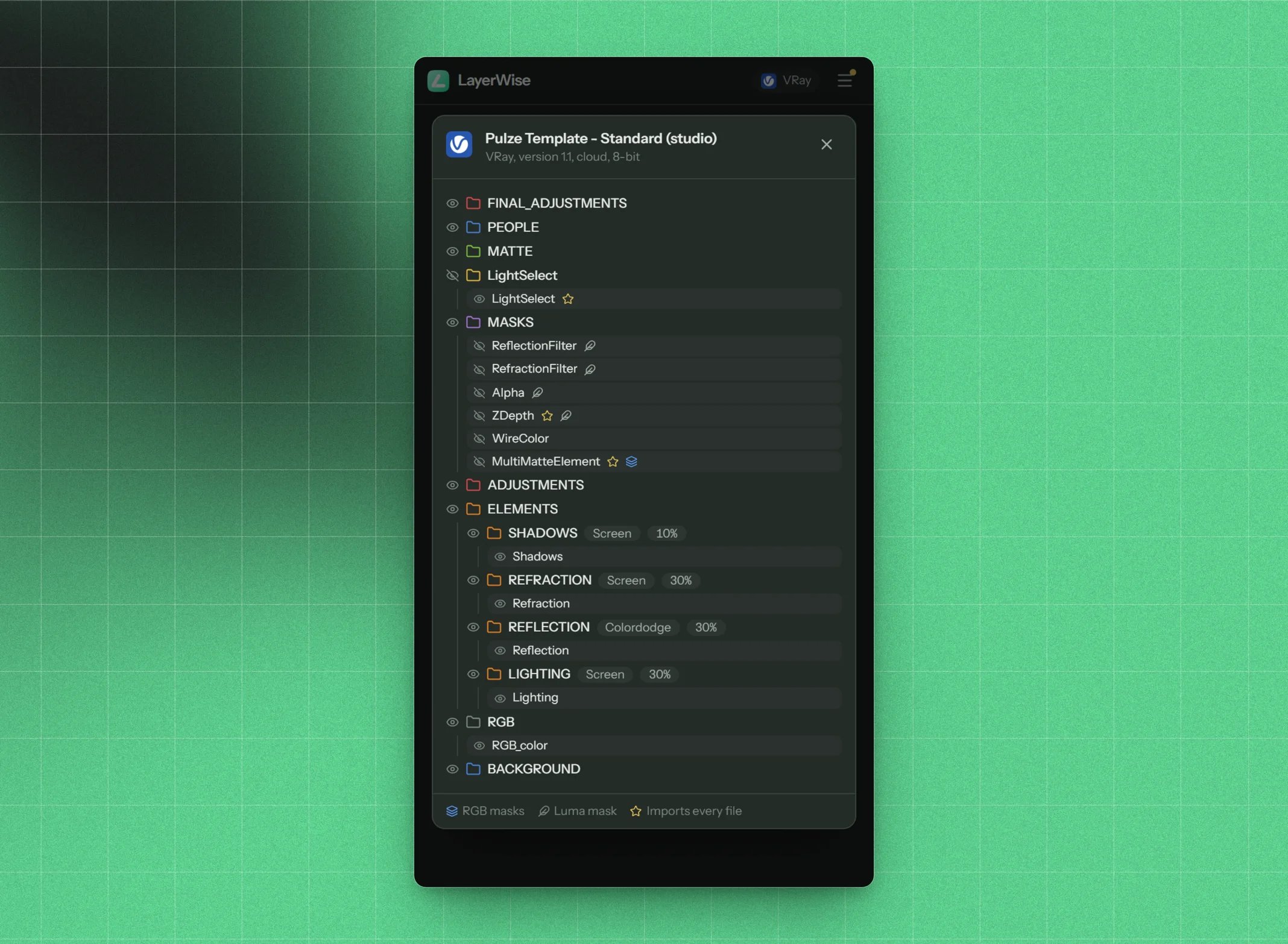
A template: groups with their blend modes, and element slots inside them
Smart objects
LayerWise places every render as a smart object. That’s what makes updating possible: LayerWise replaces the contents later and leaves what’s attached to the layer alone (its mask, smart filters, layer styles, blend mode and opacity).- Embedded smart objects store the render inside the PSD. This is the default.
- Linked smart objects point to the render file on disk and keep the PSD small.
cam01.Reflection.png or Reflection counts as the Reflection element.
Mask targets
A mask target is any layer or group whose name matches a mask’s name. When LayerWise makes a mask called#Wood from a multimatte, it puts that mask on every layer or group named exactly #Wood, and creates such a group if none exists. It also saves the mask as an alpha channel of the same name in the Channels panel.
This is what keeps your masks up to date: name a group #Wood, put your wood adjustments inside, and each time you update the renders, the group’s mask is rebuilt from the new multimatte.
Undo, cancel and safety
- Every job shows up as undo steps in the History panel, one per element (for example Replacing Reflection), so you can step back through it.
- Cancel a job at any time from the progress overlay or with Esc. If a step fails, only that step is rolled back.
What stays on your computer
LayerWise works on your files locally. It only goes online to:- sign you in with your Pulze account (after the first sign-in it also works offline),
- list and store your cloud templates, if you use them,
- check once per launch whether a new version is available.