

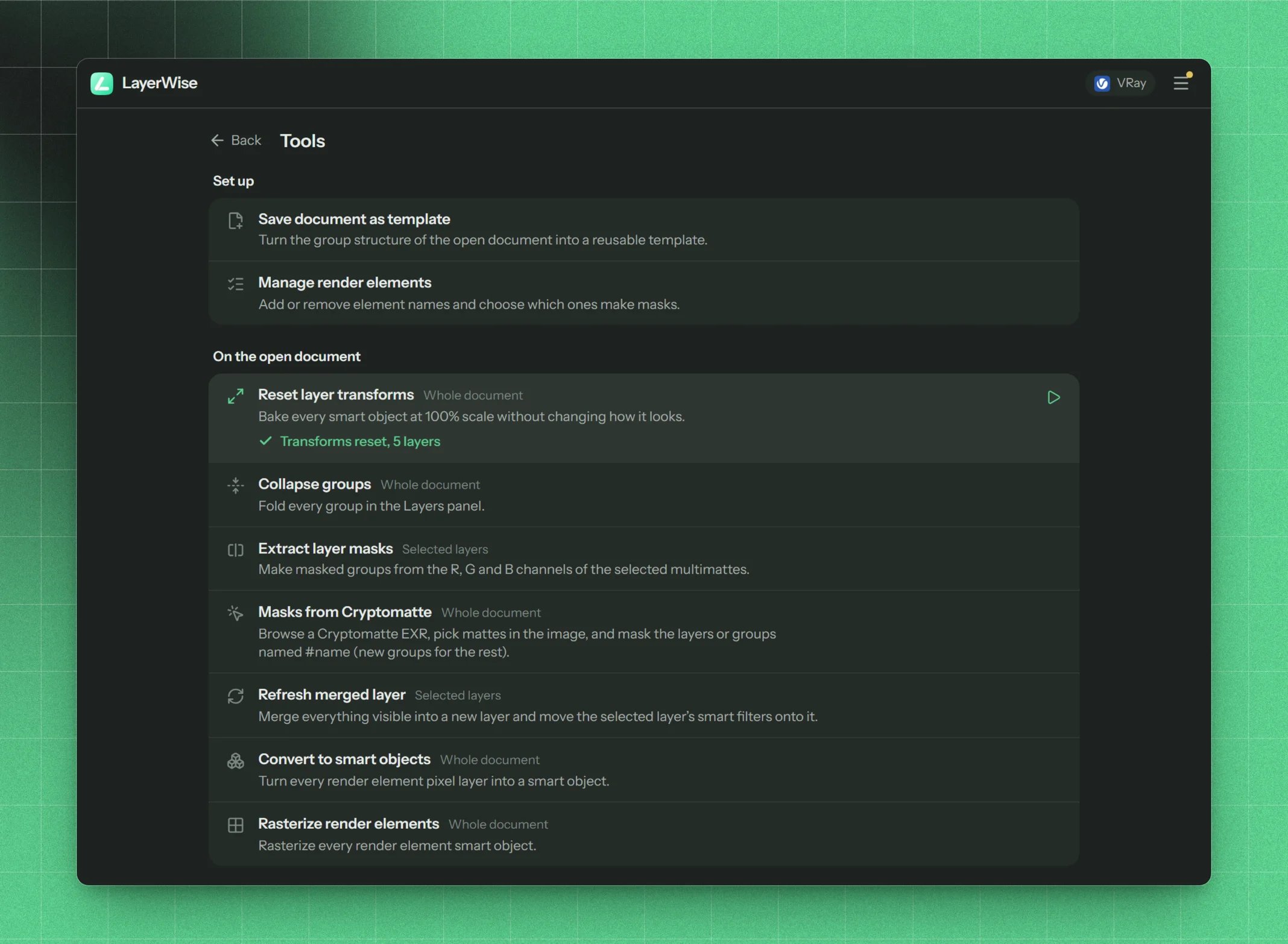
The Tools screen
Set up
Save document as template
Turns the group structure of the open document into a reusable template. See Create a template from a document.Manage render elements
Opens the Render elements list.On the open document
Reset layer transforms
Whole document. Bakes every smart object at 100% scale without changing how it looks. Run it after Update renders fitted a larger render into an old footprint and you want the smart objects to read 100% again.Collapse groups
Whole document. Folds every group in the Layers panel.Extract layer masks
Selected layers. Makes masked groups from the R, G and B channels of the selected multimatte smart objects, using the nametags in their file names (or their layer names). Existing layers and groups with the mask’s name get the mask; otherwise a new group is created. See Masks.Masks from Cryptomatte
Whole document. Makes masks from a Cryptomatte on the open document, without updating any renders. Browse the Cryptomatte EXR (and the beauty render too, if the EXR has none), pick mattes in the list or in the image, and press Make masks. Layers and groups already named#name get new masks, and the other mattes get new groups. See Cryptomatte.
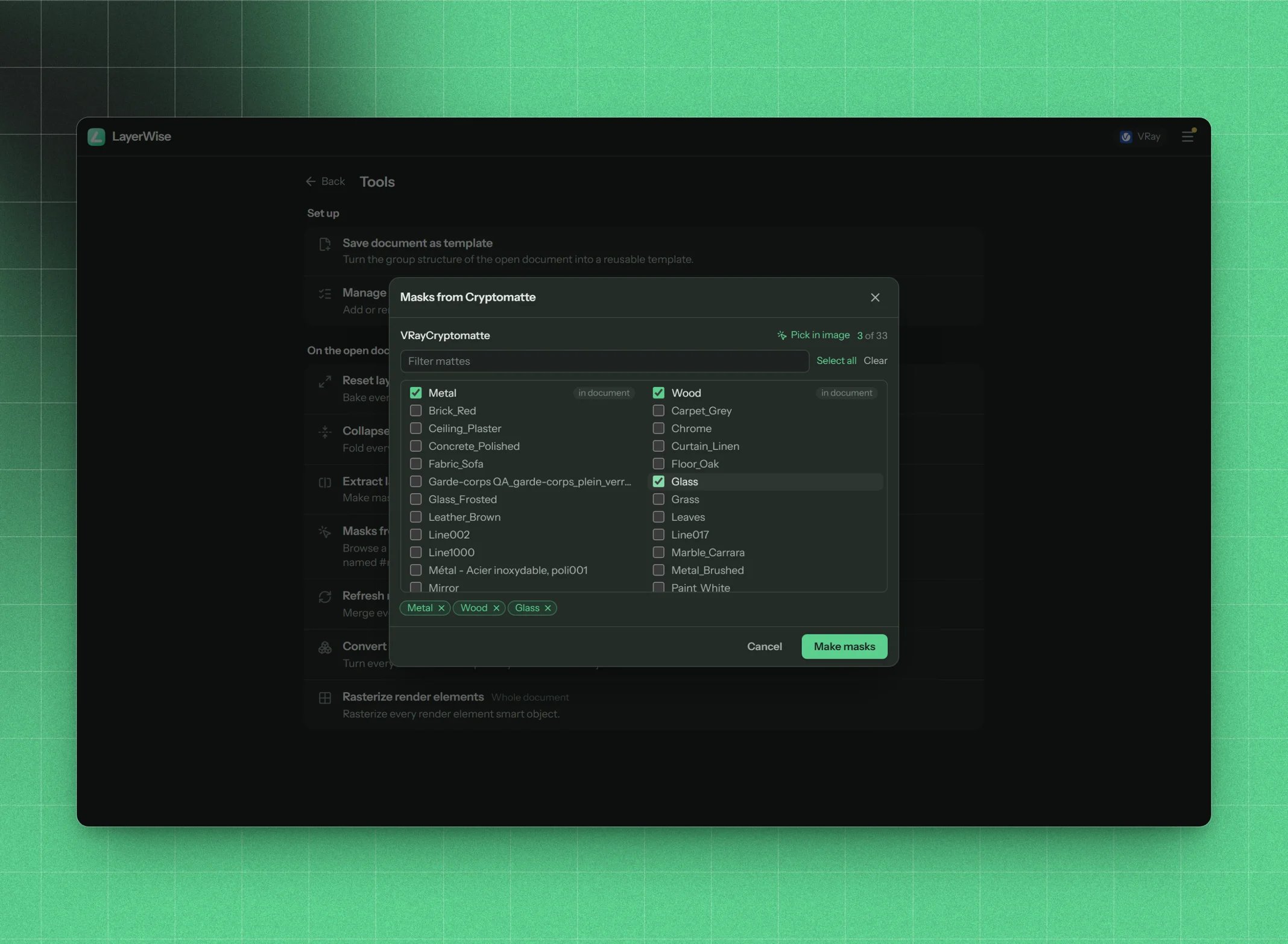
Masks from Cryptomatte: pick mattes, then Make masks
Refresh merged layer
Selected layers. Rebuilds a “stamp visible” layer with smart filters on top of your stack (for example a merged layer carrying Camera Raw or sharpening). It merges everything visible into a new smart object, moves the selected layer’s smart filters onto it, and puts it in the old layer’s place with the same name, opacity, blend mode and visibility. Run it after you change layers below, so your finishing filters apply to the fresh result. The selected layer must have smart filters.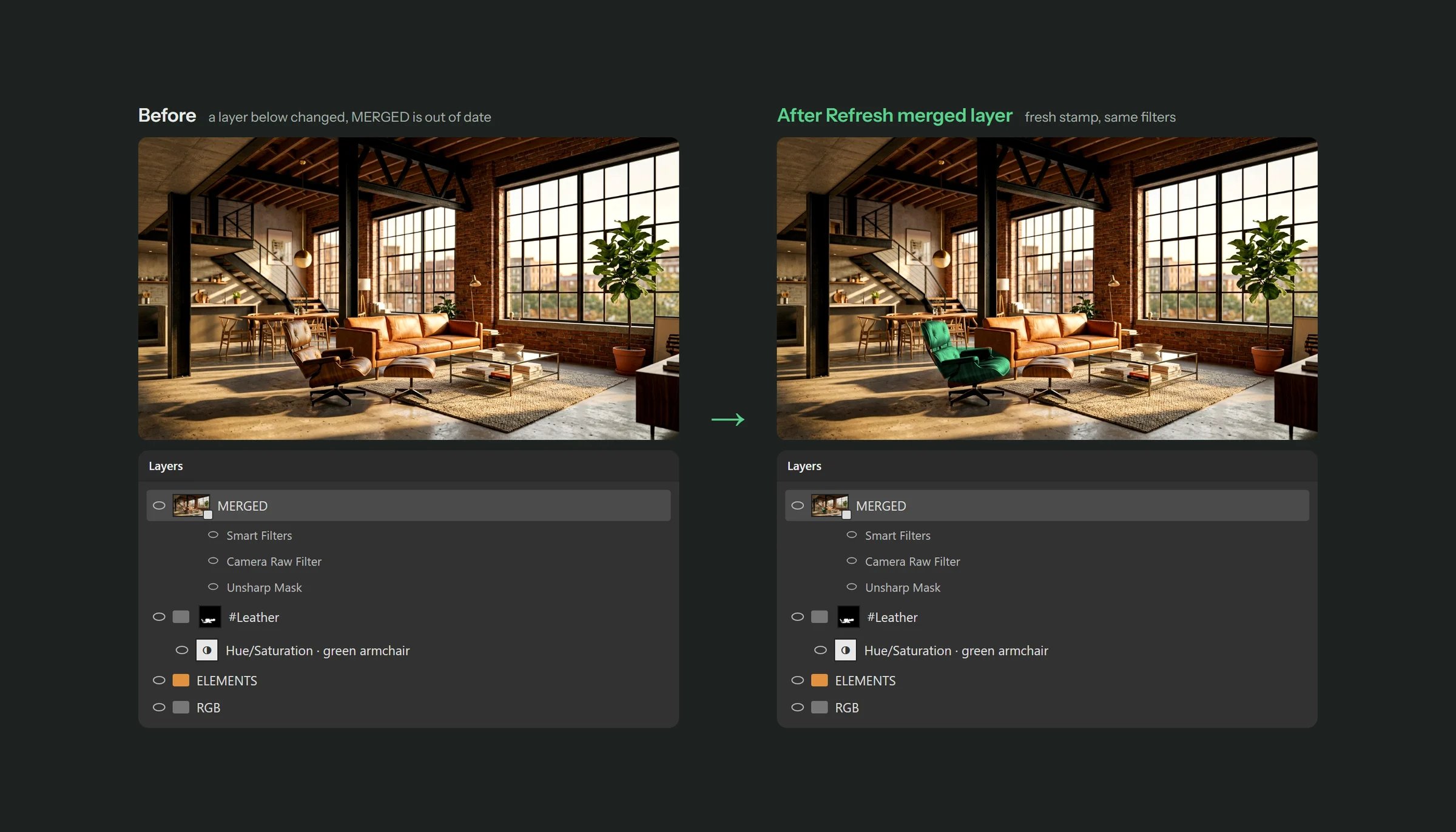
Refresh merged layer: a fresh stamp of the image with the same smart filters