

What you need
- The PSD with its render element layers, open in Photoshop.
- The region renders: the same elements, rendered at the full image size with only the region filled in (the usual output of a region render in V-Ray, Corona or FStorm).
- Ideally a mask for the region, typically the region render’s Alpha pass. Its white area is what gets merged.
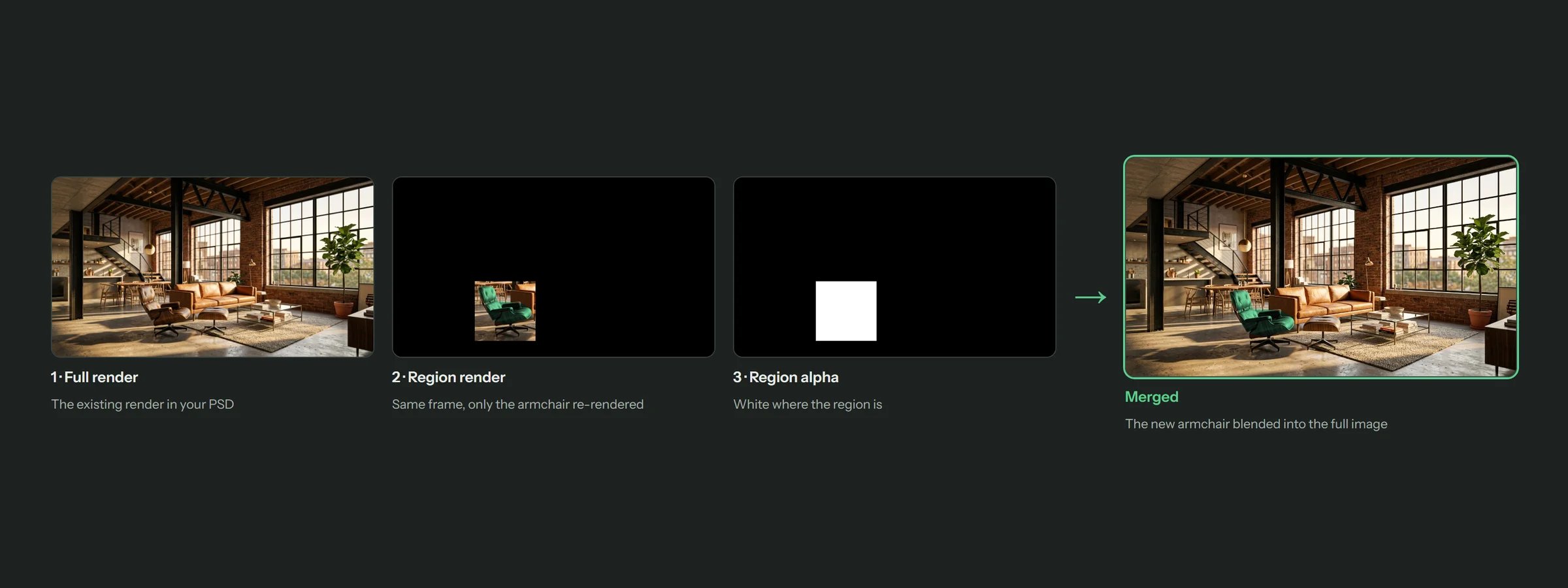
A region render and its alpha, merged into the full image
Merge the regions
1
Start Update renders
With the PSD open, press Update renders on Home and pick the region renders, as in Update renders. Include the region’s Alpha file in your pick.
2
Check the pairing
In the plan, check that each layer has its region render, and turn off the ones you don’t want to merge.
3
Press Merge as regions
The Merge as regions dialog asks for a Region mask. Choose the region’s Alpha file from the list (you can use any of the picked files).
4
Merge
Press Merge regions. Each layer is updated as its own undo step.
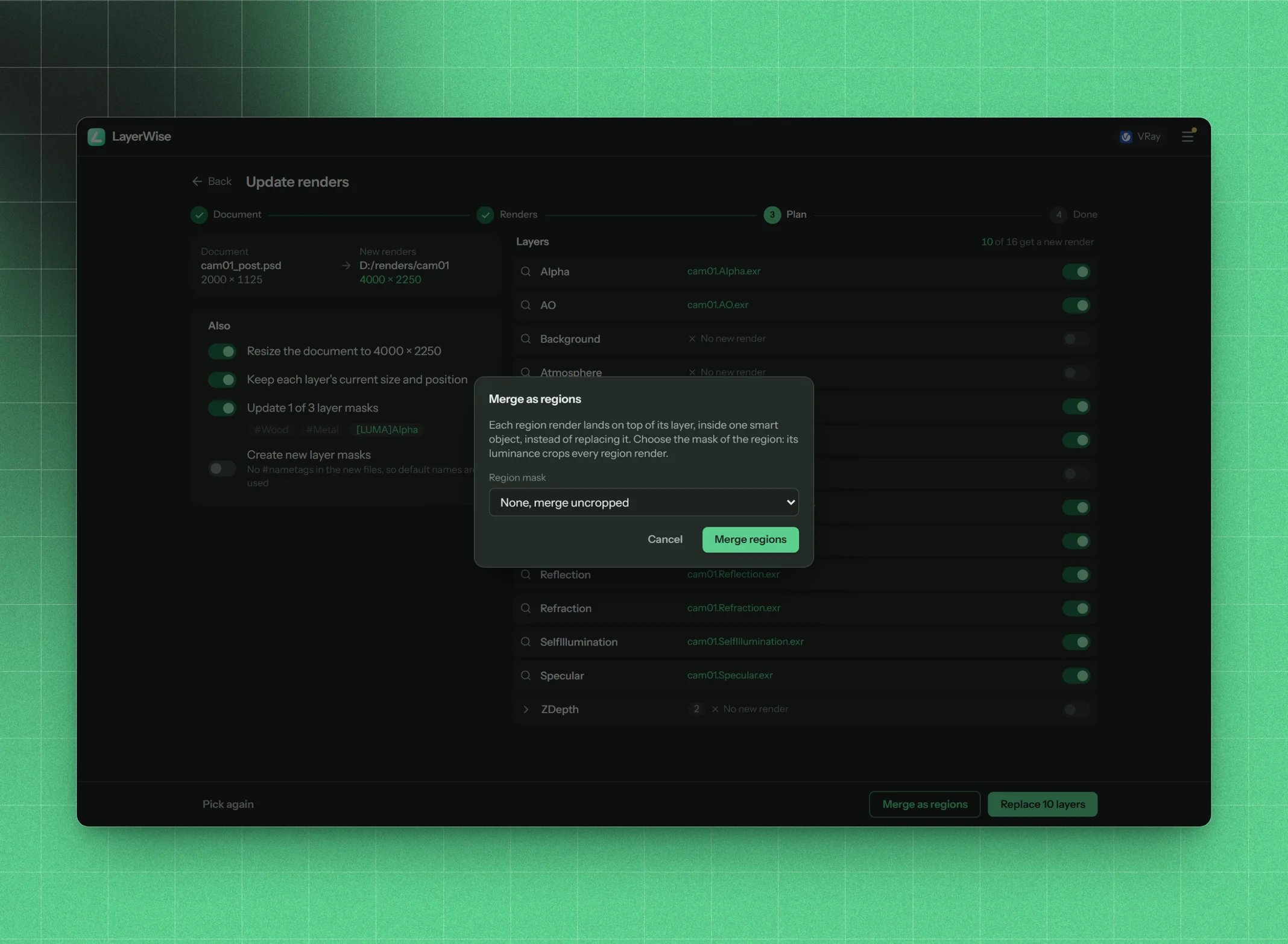
Choosing the mask that crops the regions
What happens
- The mask file becomes a channel named
regionAlphaMaskin the document. It stays there, so you can reuse it as a selection. - For each layer, the region render is placed above it, masked by the region channel, and both are combined into a single smart object. Inside it is the old render with the region on top.
- The layer’s name, opacity, blend mode, visibility, mask, smart filters and layer styles move to the new smart object, so it looks and behaves as before.
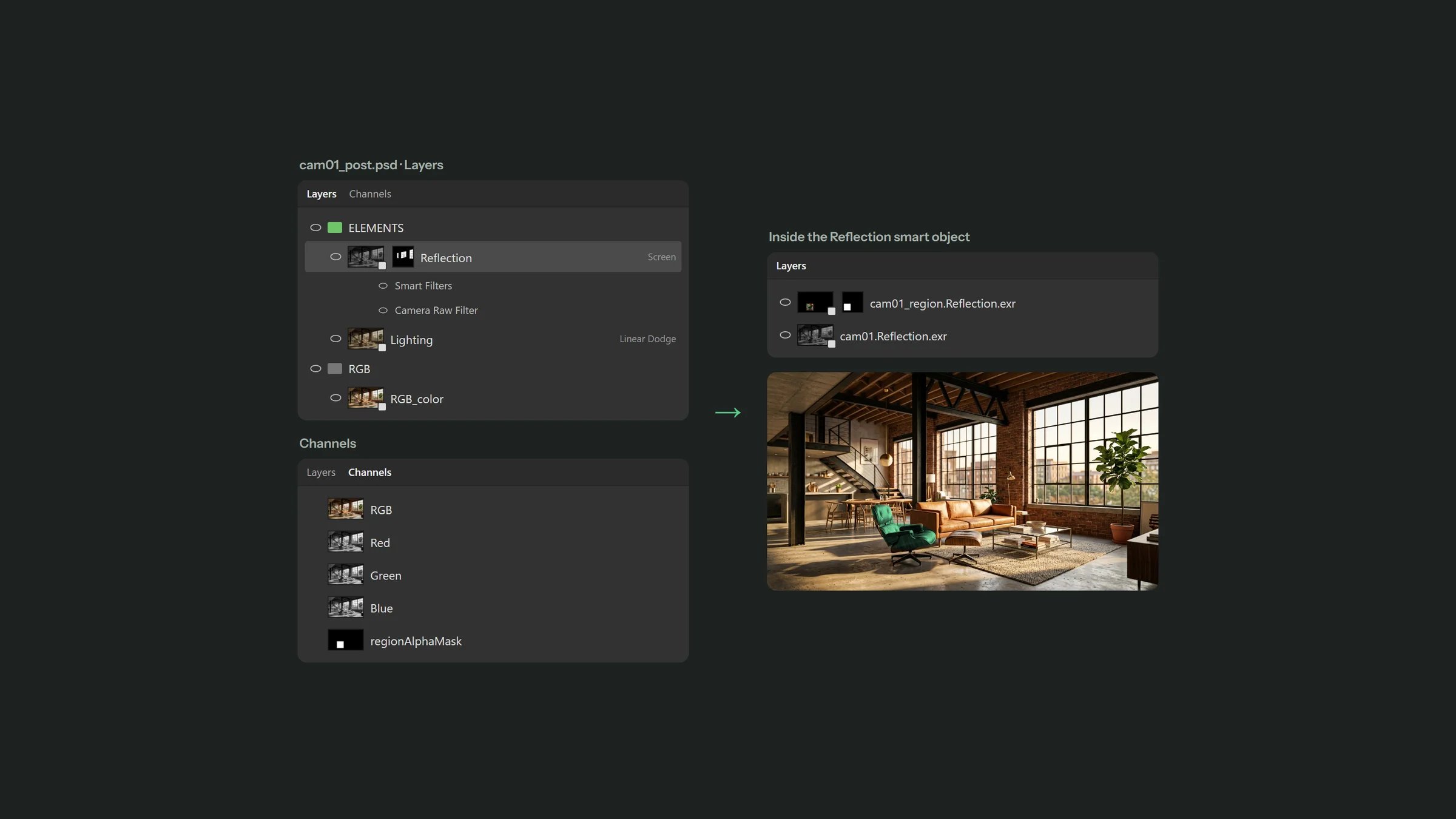
Each merged layer holds the old render with the masked region on top