

Home
Every workflow starts here.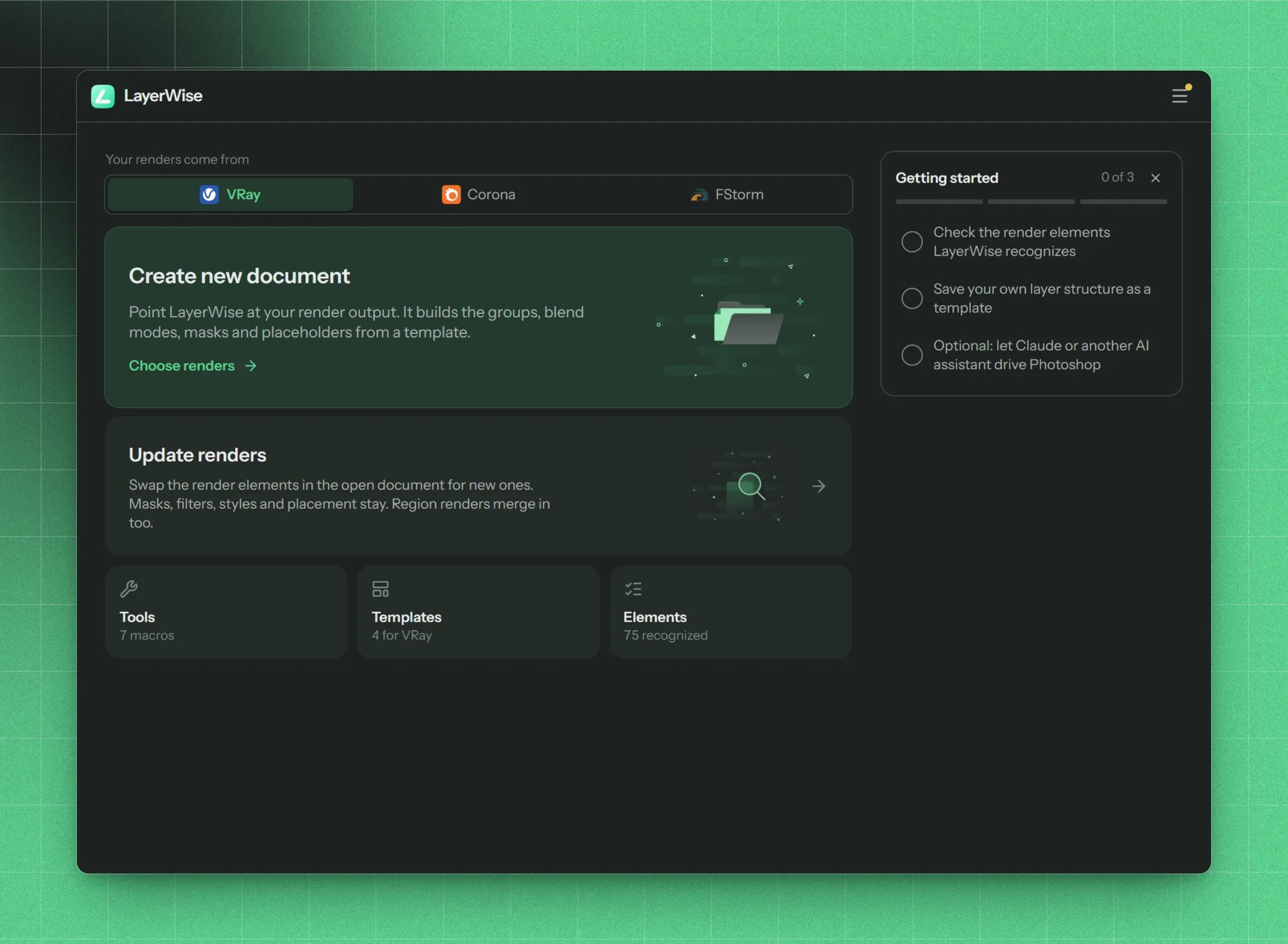
The Home screen
- Your renders come from. Pick the render engine: V-Ray, Corona or FStorm. This sets which element names and templates LayerWise uses, and it’s remembered.
- Create new document. Build a new PSD from a template and your render output. See Create new document.
- Update renders. Swap new renders into the open PSD, or merge region renders into it. See Update renders.
- Tools, Templates and Elements. Shortcuts to Tools, Templates and Render elements, with a count for the current engine.
- Getting started. A short checklist for your first days. Items tick off as you do them; hide the list with ✕.
The menu
The menu button in the header opens:
Every screen has a back button at the top left, and its main actions sit at the bottom, always in reach.
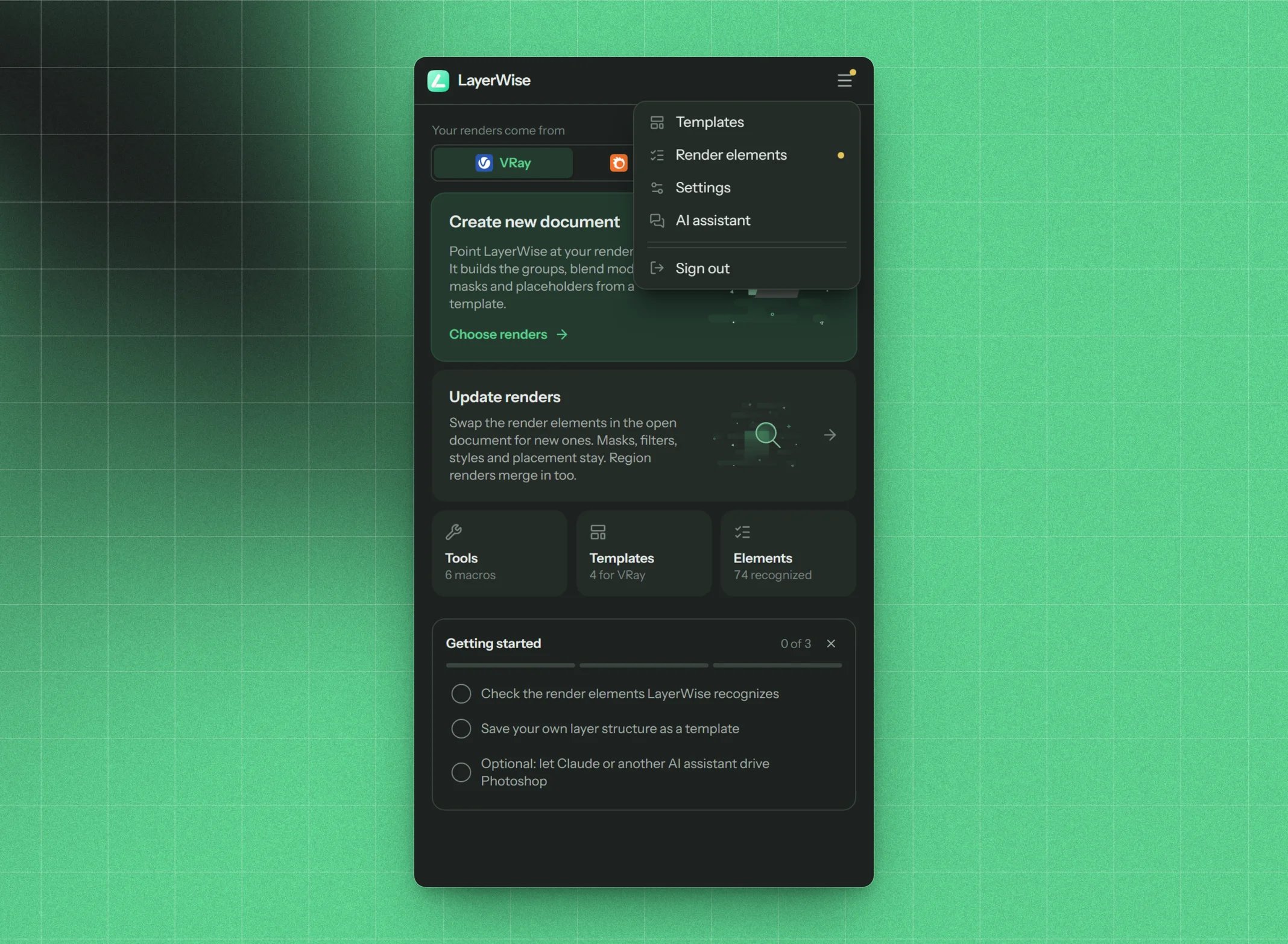
The header menu
Wizards
Both workflows are step-by-step wizards with a step bar at the top. Nothing changes in Photoshop until you press the wizard’s final button.Progress and cancelling
While a job runs, an overlay shows what LayerWise is doing, how far along it is, and a Cancel button. After a couple of seconds Photoshop also shows its own progress bar, where Esc cancels too.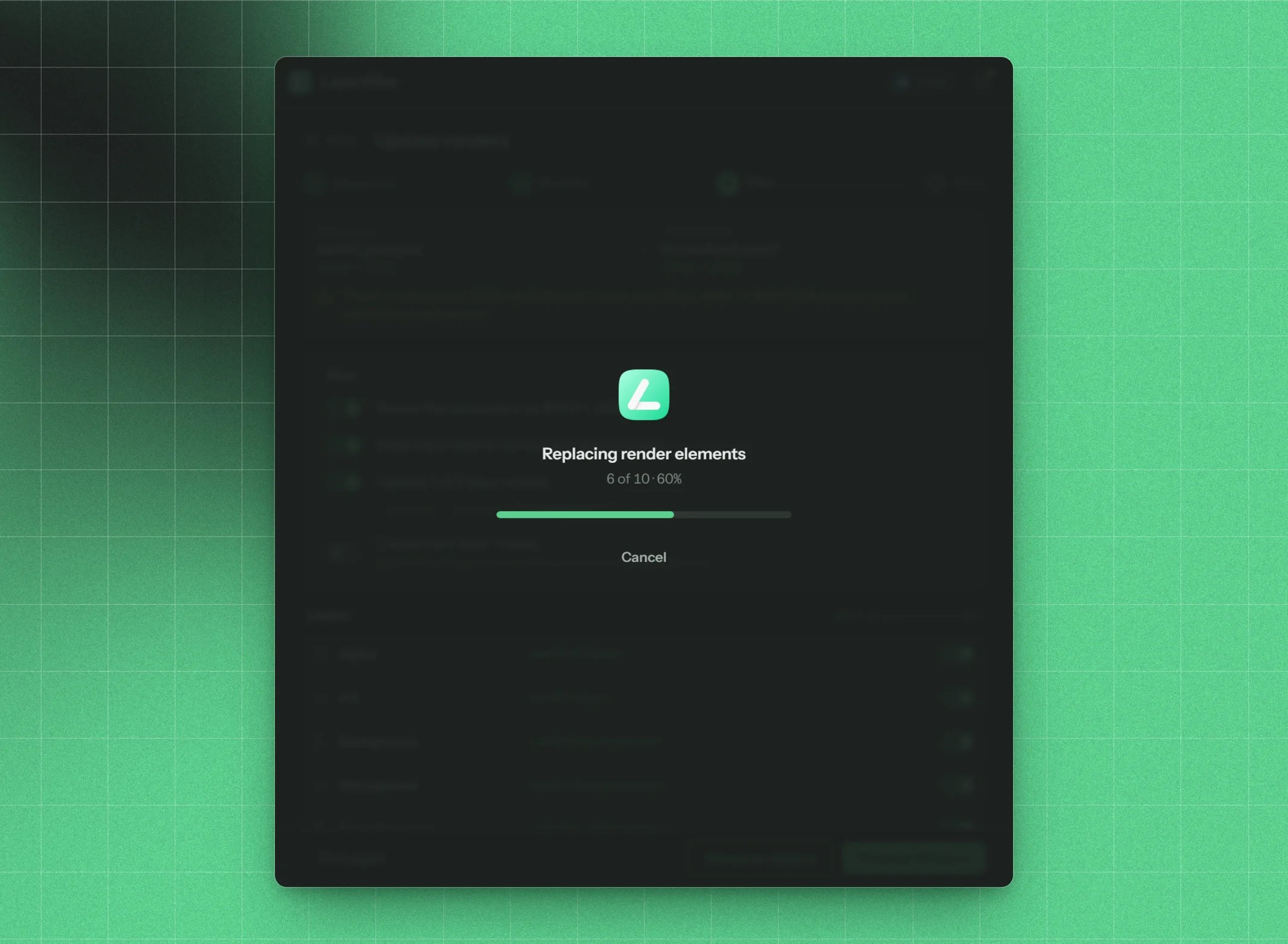
A job in progress